REPTREND / iPHONE
How to track push-ups with RepTrend
Do a set. Log your reps. See your progress.
A practical iPhone tutorial, from your first push-up entry to your daily history.
REPTREND / Tutorial
First, find your push-up tracker
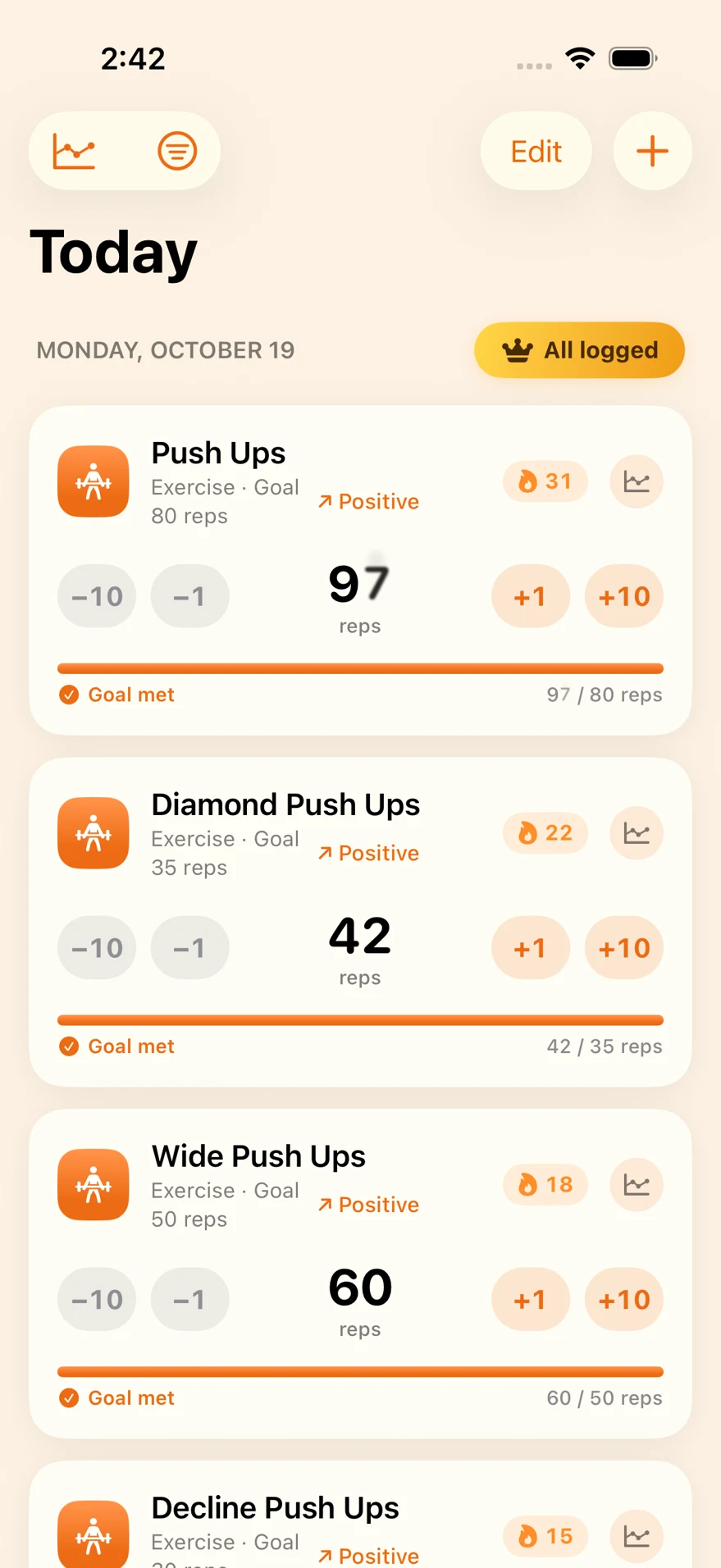
- Open RepTrend and go to Today. If you already have a Push Ups card, you are ready to log.
- If it is missing, tap + in the top-right corner. Enter “Push Ups”, tap Continue, choose reps, then continue to Daily Goal.
- Enter an optional daily target and tap Add Item, or choose Add Without Goal. You will return to Today with your tracker.
Log the reps you just completed
On the Push Ups card, tap +10 to record ten reps or +1 for one rep. For a set of 12, tap +10 once and +1 twice. Record each set when you finish; the number on the card is your total for today.
See your push-up history
Tap the small chart icon on the Push Ups card to open its history. Review the rep chart, total, best day, and goal streak. The screenshot shows example history built up over several days.
Check your activity over time
Open Trends using the chart icon at the top-left of Today. The All Activity calendar brings your trackers together. Tap a day for details, then return to Today to log your next set.
Actual app screenshots with example data. Your counts, dates, and appearance may differ.
Your next set starts here.
Open RepTrend, find Push Ups, and log the reps you completed.
Get RepTrend for iPhone ↗Back to top ↑